
Step by step tutorial to get your loyalty cards into Apple Wallet
2026-02-03
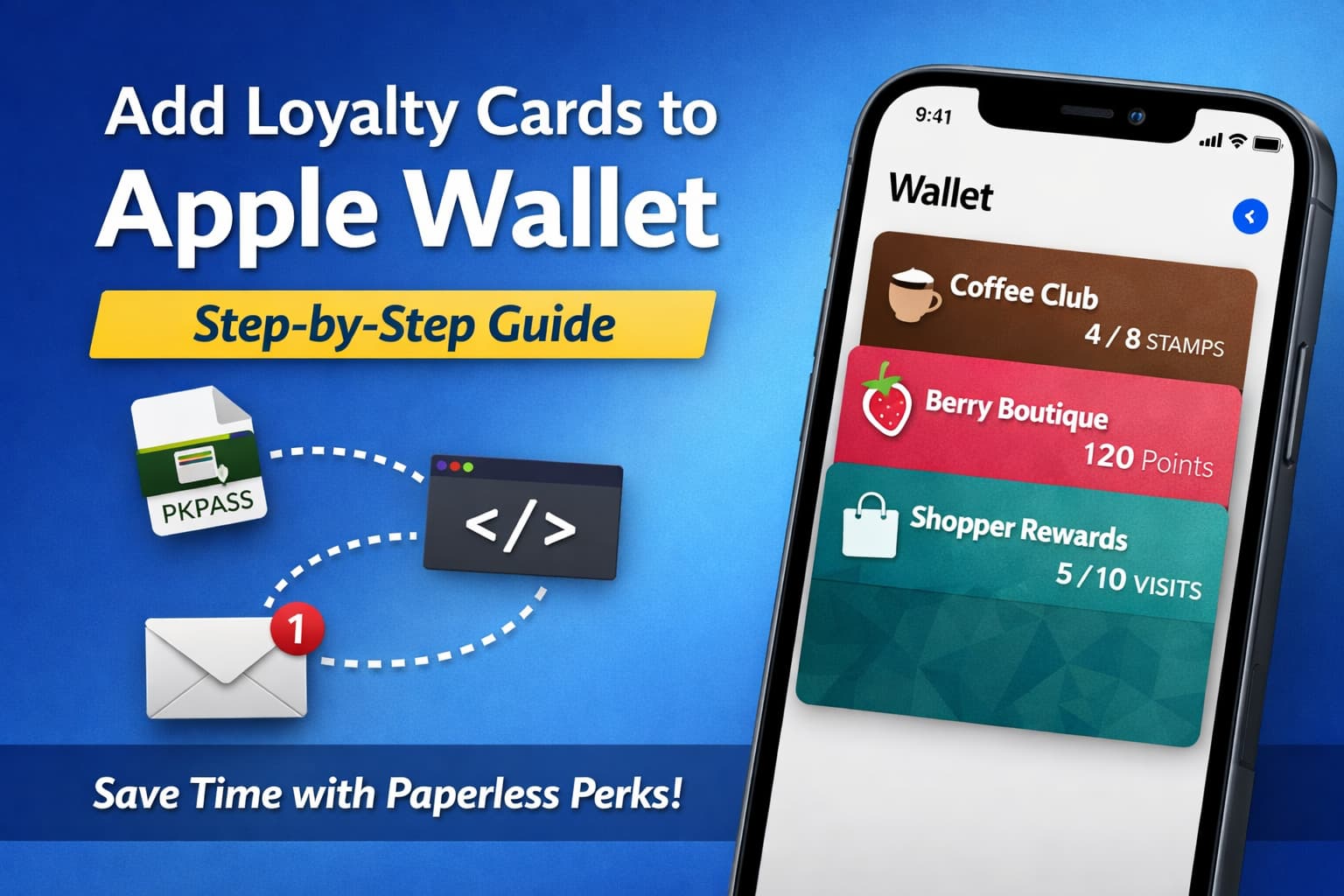
With every passing day, consumers expect your brand to be easily accessible on their phone. More and more customers don’t even bring a physical wallet or purse with them anymore, instead relying entirely on their digital wallet.
That shift is quietly decimating the effectiveness of paper loyalty cards.
If they don’t have a physical wallet with them:
- They don’t see your brand
- They’re not reminded to come back
- Your loyalty scheme stops working
That means fewer repeat visits and less revenue.
If you’ve clicked on this page, you’ve probably already spotted the opportunity here. While many businesses haven’t caught on yet, you have: your loyalty card can live directly inside your customers’ Apple Wallet.
That puts your brand alongside their bank cards, boarding passes, and tickets — things they check multiple times a day.
Done properly, Apple Wallet loyalty cards let you:
- Get seen more often without spending on ads
- Send push notifications when a stamp is earned or a reward is ready
- Trigger proximity notifications when a customer walks nearby
- Eliminate printing, replacing, and managing physical cards entirely
So… how do you actually build one?
The hard way and the easy way
This page walks through exactly how to implement your own Apple Wallet–based loyalty system, step by step.
We’ve already done all of this for you. Paperless Perks handles Apple Wallet and Google Wallet loyalty cards, hosting, updates, notifications, QR codes, and ongoing maintenance — without you needing to touch any of the technical complexity below.
If you want the result without the build, you can get started for free (no credit card required):
If, however, you’re curious how it works under the hood — or you’re determined to build it yourself — read on.
The process
At a high level, an Apple Wallet loyalty system needs three core capabilities:
- The ability to produce Apple Wallet cards
- The ability to update Apple Wallet cards
- The ability to distribute Apple Wallet cards to customers
And if you want to support the other half of the population, you’ll eventually want to do all of this for Google Wallet as well.
Producing Apple Wallet cards
Card structure
This guide assumes a reasonable level of technical comfort. If you start reading this section and feel your eyes glazing over, that’s your cue to scroll back up and choose the easy way.
An Apple Wallet card (technically called a pass) is actually just a ZIP file.
Inside that ZIP file is a very specific structure that Apple requires:
The most important components are:
- Image assets (icons, logos, strip images)
pass.json, which defines how the card looks and behaves
The pass.json file is where most of the customisation happens. Apple gives you a fixed layout system, but within that you can control colors, text fields, barcodes, and dynamic updates.
Apple documents every available property here: Apple Wallet PassKit documentation
One crucial point for loyalty schemes: You’ll want one of your fields to represent the customer’s current stamp count or progress. That’s the value you’ll update later.
Signing the ZIP
Apple Wallet passes must be cryptographically signed. This ensures that the pass came from a legitimate developer and hasn’t been tampered with. To do this, you’ll need:
- An Apple Developer account (£90/year)
- A Pass Type Identifier
- A Pass Signing Certificate
Once you have these, you generate a manifest.json file containing a hash of every asset in your bundle:
{
  "icon.png": "df6d312a8abee6f6e2e97f77ecbca9d88029e4b2",
  "pass.json": "e0480666267b07963297b3ec46f214a3f0ef1351"
}
You then sign this manifest using your certificate. Apple provides tooling that automates this: Apple Pass Signing Tools
Zip, and correct the file type
Once you have assets, pass.json, manifest.json, and the signature file, you zip them together. The final step is simple: rename the file extension from .zip to .pkpass.
Test
Double‑click the .pkpass file on a Mac. If Apple Wallet opens and offers to add it, you’ve done everything correctly. If it doesn’t, use Xcode to surface errors like invalid JSON or signing issues.
Updating your cards
Updating passes requires:
- Hosting a web service endpoint
- Storing a unique identifier per installed pass
- Sending push notifications via Apple Push Notification service (APNs)
When a customer earns a stamp, your server must update the stored state and send a push notification to Apple. This involves APNs authentication keys, secure servers, and retry logic.
Distributing your cards
Finally, you need a way for customers to get the card. Common approaches include:
- QR codes displayed at the till
- Links sent via SMS or email
- NFC taps on a countertop card
Conclusion
It is possible to build this yourself, but it’s time‑consuming and technically demanding. If you’d rather spend that time running your business, Paperless Perks gives you everything out of the box.